
In this step-by-step guide, learn how to deploy a web app for Gradio on Azure with Docker. This blog covers everything from Azure Container Registry to Azure Web Apps, with a step-by-step tutorial for beginners.
’I was searching for ways to deploy a Gradio application on Azure, but there wasn’t much information to be found online. After some digging, I realized that I could use Docker to deploy custom Python web applications, which was perfect since I had neither the time nor the expertise to go through the “code” option on Azure.
From there, it can be deployed to the Azure App Service, where it is run as a container and can be managed from the Azure Portal. In this portal, users can adjust the settings of their app, as well as grant access to roles and services when needed.
Once everything is set and the necessary permissions have been granted, the web app should be able to properly run on Azure. Deploying a web app on Azure using Docker is an easy and efficient way to create and deploy applications, and can be a great solution for those who lack the necessary coding skills to create a web app from scratch!’
Comprehensive overview of creating a web app for Gradio
Gradio application
Gradio is a Python library that allows users to create interactive demos and share them with others. It provides a high-level abstraction through the Interface class, while the Blocks API is used for designing web applications.Blocks provide features like multiple data flows and demos, control over where components appear on the page, handling complex data flows, and the ability to update properties and visibility of components based on user interaction. With Gradio, users can create a web application that allows their users to interact with their machine learning model, API, or data science workflow.
The two primary files in a Gradio Application are:
- App.py: This file contains the source code for the application.
- Requirements.txt: This file lists the Python libraries required for the source code to function properly.
Docker
Docker is an open-source platform for automating the deployment, scaling, and management of applications, as containers. It uses a container-based approach to package software, which enables applications to be isolated from each other, making it easier to deploy, run, and manage them in a variety of environments.A Docker container is a lightweight, standalone, and executable software package that includes everything needed to run a specific application, including the code, runtime, system tools, libraries, and settings. Containers are isolated from each other and the host operating system, making them ideal for deploying microservices and applications that have multiple components or dependencies.
Docker also provides a centralized way to manage containers and share images, making it easier to collaborate on application development, testing, and deployment. With its growing ecosystem and user-friendly tools, Docker has become a popular choice for developers, system administrators, and organizations of all sizes.
Azure Container Registry
Azure Container Registry (ACR) is a fully managed, private Docker registry service provided by Microsoft as part of its Azure cloud platform. It allows you to store, manage, and deploy Docker containers in a secure and scalable way, making it an important tool for modern application development and deployment.With ACR, you can store your own custom images and use them in your applications, as well as manage and control access to them with role-based access control. Additionally, ACR integrates with other Azure services, such as Azure Kubernetes Service (AKS) and Azure DevOps, making it easy to deploy containers to production environments and manage the entire application lifecycle.
ACR also provides features such as image signing and scanning, which helps ensure the security and compliance of your containers. You can also store multiple versions of images, allowing you to roll back to a previous version if necessary.
Azure Web App
Azure Web Apps is a fully managed platform for building, deploying, and scaling web applications and services. It is part of the Azure App Service, which is a collection of integrated services for building, deploying, and scaling modern web and mobile applications.With Azure Web Apps, you can host web applications written in a variety of programming languages, such as .NET, Java, PHP, Node.js, and Python. The platform automatically manages the infrastructure, including server resources, security, and availability, so that you can focus on writing code and delivering value to your customers.
Azure Web Apps supports a variety of deployment options, including direct Git deployment, continuous integration and deployment with Visual Studio Team Services or GitHub, and deployment from Docker containers. It also provides built-in features such as custom domains, SSL certificates, and automatic scaling, making it easy to deliver high-performing, secure, and scalable web applications.
A step-by-step guide to deploying a Gradio application on Azure using Docker
Step 1: Create an Azure Container Registry resource
Go to Azure Marketplace, search for ‘container registry’, and hit ‘Create’.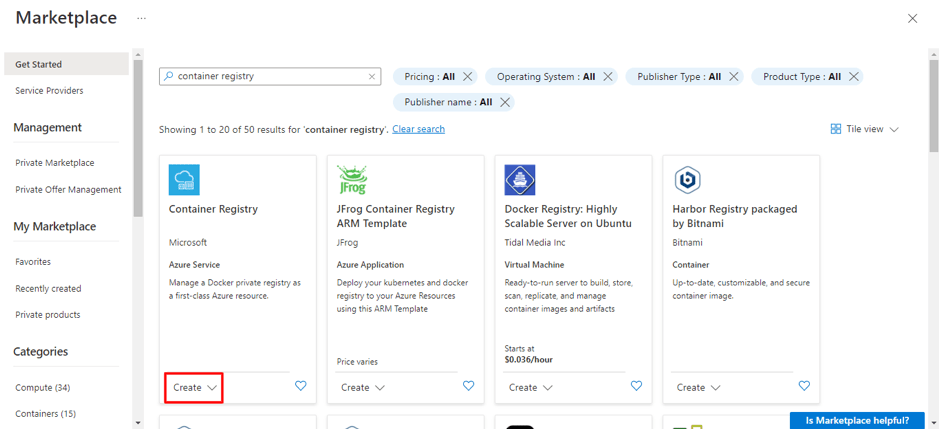 STEP 1: Create an Azure Container Registry resource
Under the “Basics” tab, complete the required information and leave the other settings as the default. Then, click “Review + Create.”
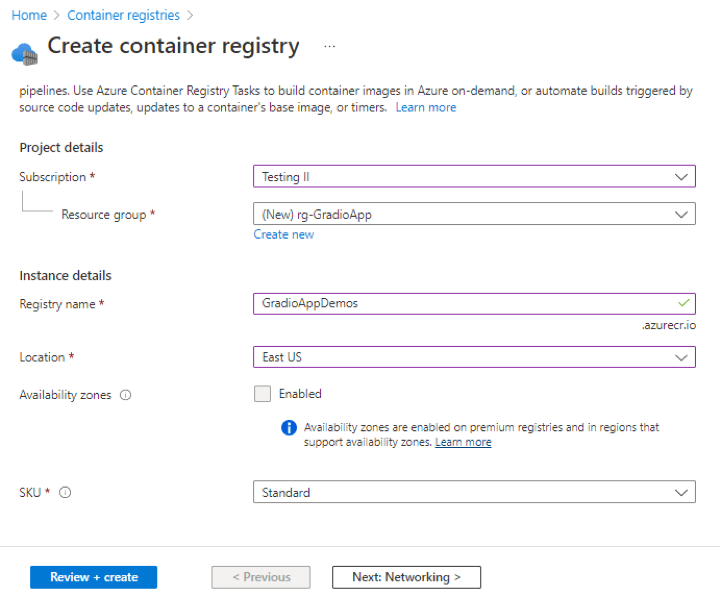 Web App for Gradio Step 1A
Step 2: Create a Web App resource in Azure
In Azure Marketplace, search for "Web App", select the appropriate resource as depicted in the image, and then click "Create".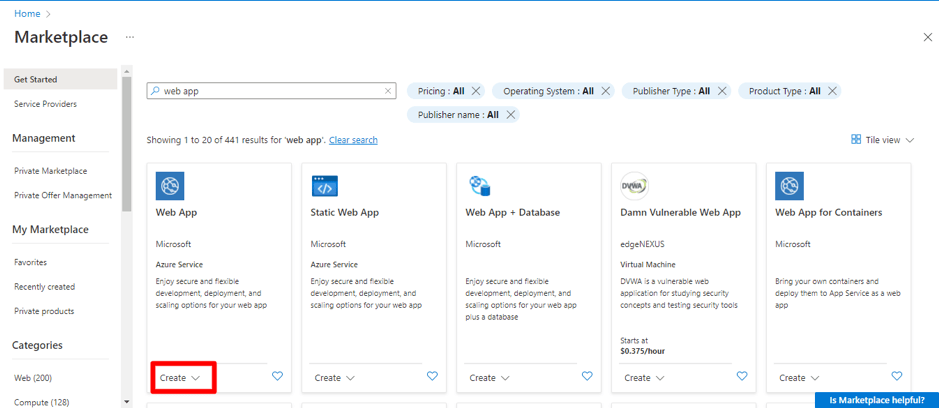 Create a Web App resource in Azure
Under the “Basics” tab, complete the required information, choose the appropriate pricing plan, and leave the other settings as the default. Then, click “Review + Create.”
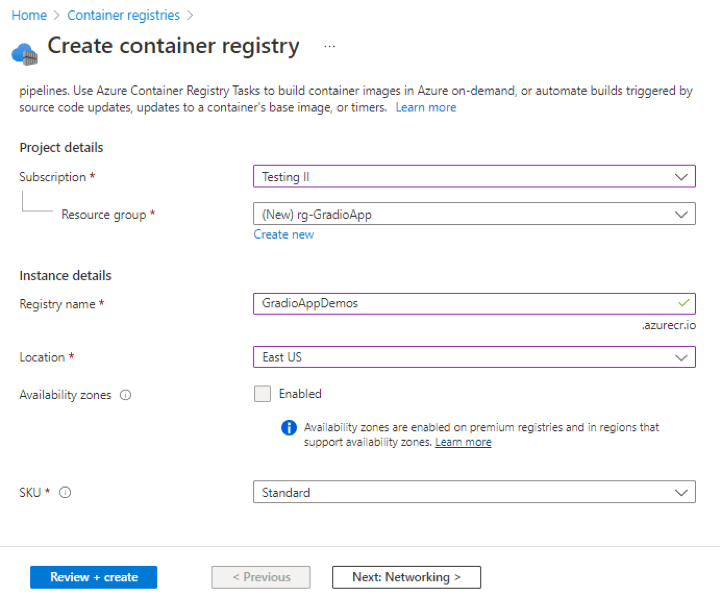 Web App for Gradio Step 2B
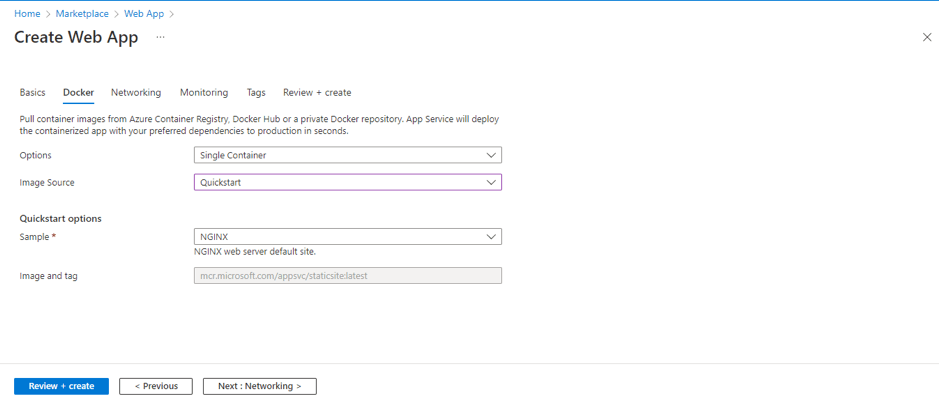 Web App for Gradio Step 2c
Upon completion of all deployments, the following three resources will be in your resource group.
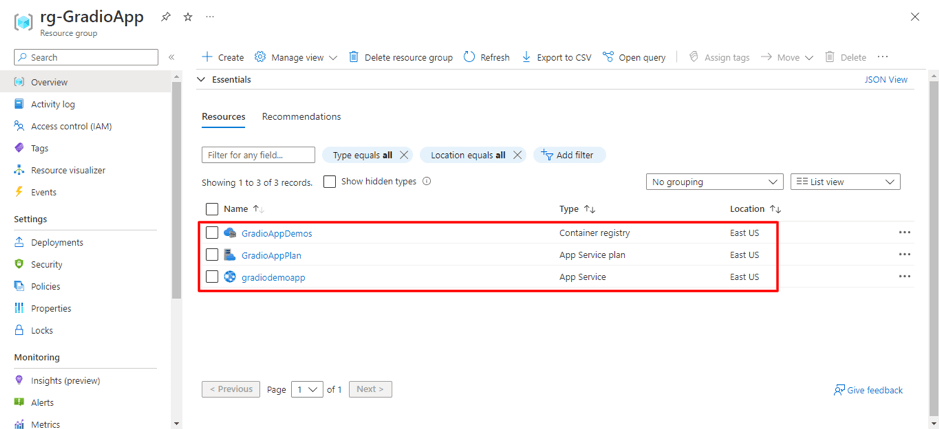 Web App for Gradio Step 2D
Step 3: Create a folder containing the “App.py” file and its corresponding “requirements.txt” file
To begin, we will utilize an emotion detector application, the model for which can be found at https://huggingface.co/bhadresh-savani/distilbert-base-uncased-emotion.APP.PY
REQUIREMENTS.TXT
Step 4: Launch Visual Studio Code and open the folder
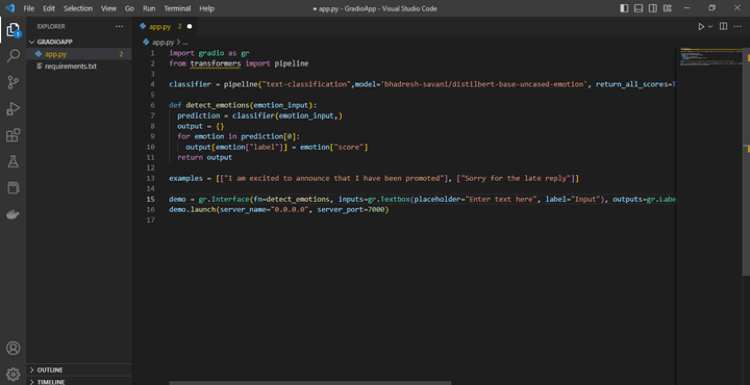 Step 4: Launch Visual Studio Code and open the folder.
Step 5: Launch Docker Desktop to start Docker.
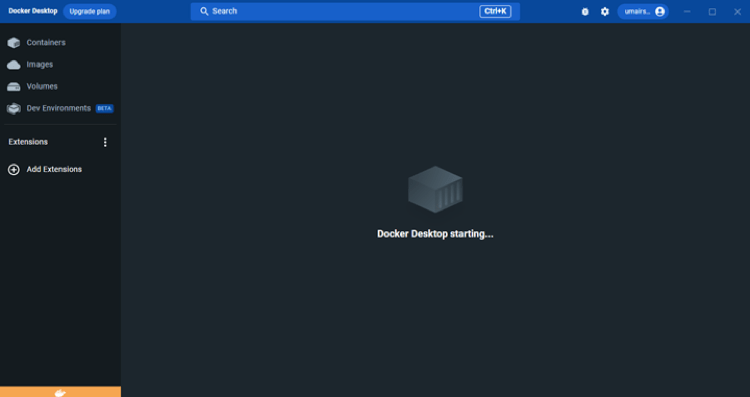 STEP 5: Launch Docker Desktop to start Docker.
Step 6: Create a Dockerfile
A Dockerfile is a script that contains instructions to build a Docker image. This file automates the process of setting up an environment, installing dependencies, copying files, and defining how to run the application. With a Dockerfile, developers can easily package their application and its dependencies into a Docker image, which can then be run as a container on any host with Docker installed. This makes it easy to distribute and run the application consistently in different environments. The following contents should be utilized in the Dockerfile:DOCKERFILE
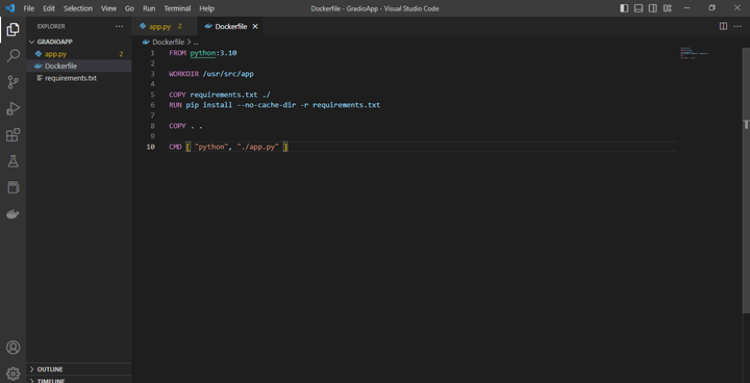 STEP 6: Create a Dockerfile
Step 7: Build and run a local Docker image
Run the following commands in the VS Code terminal.1. docker build -t demo-gradio-app
- The "docker build" command builds a Docker image from a Docker file.
- The "-t demo-gradio-app" option specifies the name and optionally a tag to the name of the image in the "name:tag" format.
- The final "." specifies the build context, which is the current directory where the Dockerfile is located.
2. docker run -it -d --name my-app -p 7000:7000 demo-gradio-app
- The "docker run" command starts a new container based on a specified image.
- The "-it" option opens an interactive terminal in the container and keeps the standard input attached to the terminal.
- The "-d" option runs the container in the background as a daemon process.
- The "--name my-app" option assigns a name to the container for easier management.
- The "-p 7000:7000" option maps a port on the host to a port inside the container, in this case, mapping the host's port 7000 to the container's port 7000.
- The "demo-gradio-app" is the name of the image to be used for the container.
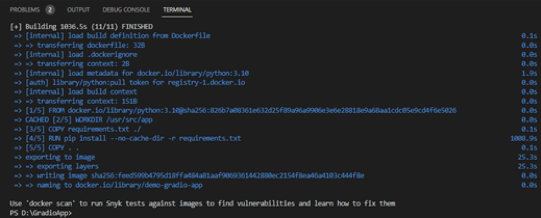 Web App for Gradio Step 7A
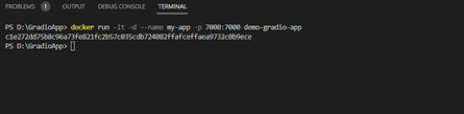 Web App for Gradio Step 7B
To view your local app, navigate to the Containers tab in Docker Desktop, and click on link under Port.
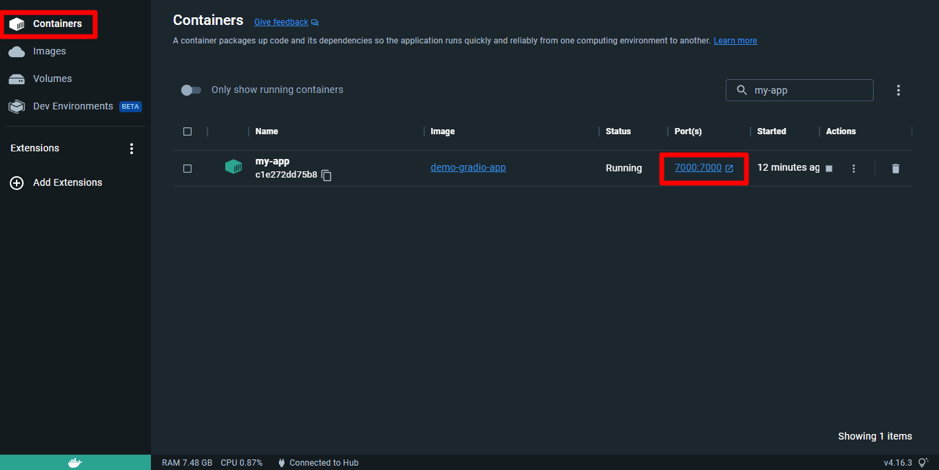 Web App for Gradio Step 7C
Step 8: Tag & Push the Image to Azure Container Registry
First, enable ‘Admin user’ from the ‘Access Keys’ tab in Azure Container Registry.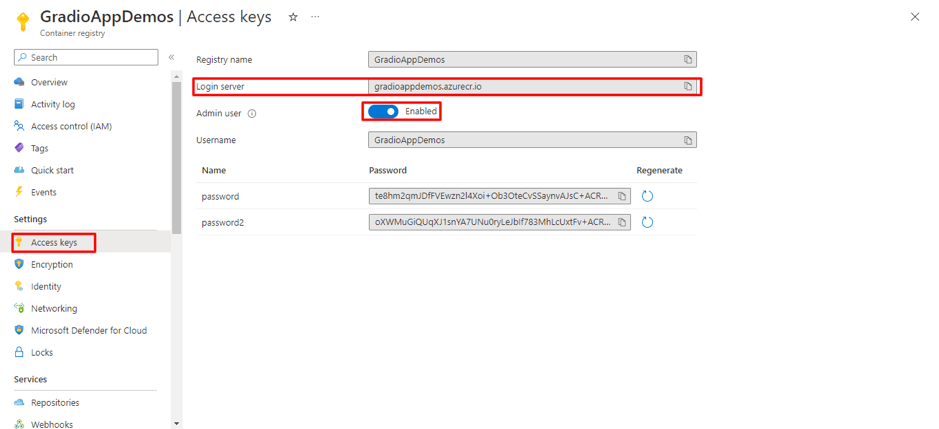 Tag & Push Images to Azure Container Registry
Login to your container registry using the following command, login server, username, and password can be accessed from the above step.
docker login gradioappdemos.azurecr.io
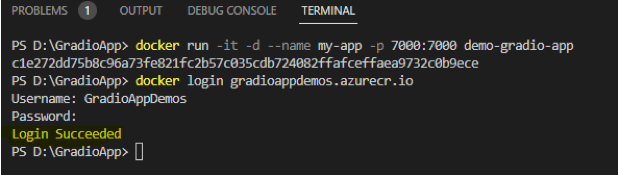 Web App for Gradio Step 8B
Tag the image for uploading to your registry using the following command.
docker tag demo-gradio-app gradioappdemos.azurecr.io/demo-gradio-app
- The command "docker tag demo-gradio-app gradioappdemos.azurecr.io/demo-gradio-app" is used to tag a Docker image.
- "docker tag" is the command used to create a new tag for a Docker image.
- "demo-gradio-app" is the source image name that you want to tag.
- "gradioappdemos.azurecr.io/demo-gradio-app" is the new image name with a repository name and optionally a tag in the "repository:tag" format.
- This command will create a new tag "gradioappdemos.azurecr.io/demo-gradio-app" for the "demo-gradio-app" image. This new tag can be used to reference the image in future Docker commands.
- "docker push" is the command used to upload a Docker image to a registry.
- "gradioappdemos.azurecr.io/demo-gradio-app" is the name of the image with the repository name and tag to be pushed.
- This command will push the Docker image "gradioappdemos.azurecr.io/demo-gradio-app" to the registry specified by the repository name. The registry is typically a place where Docker images are stored and distributed to others.
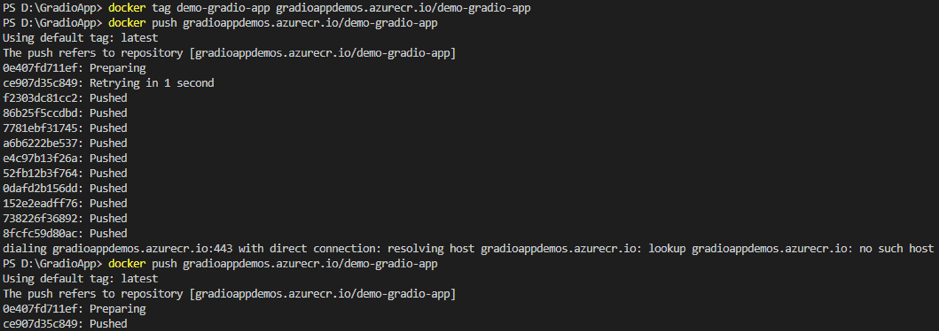 Web App for Gradio Step 8C
In the Repository tab, you can observe the image that has been pushed.
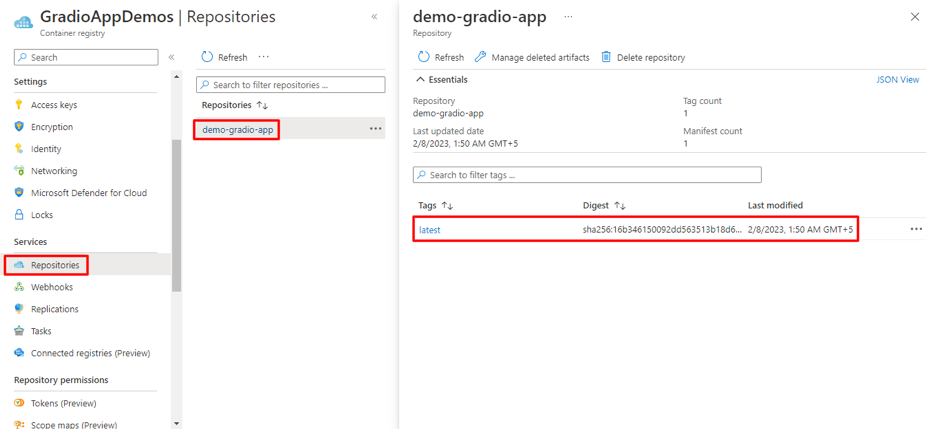 Web App for Gradio Step 8B
Step 9: Configure the Web App
Under the ‘Deployment Center’ tab, fill in the registry settings then hit ‘Save’.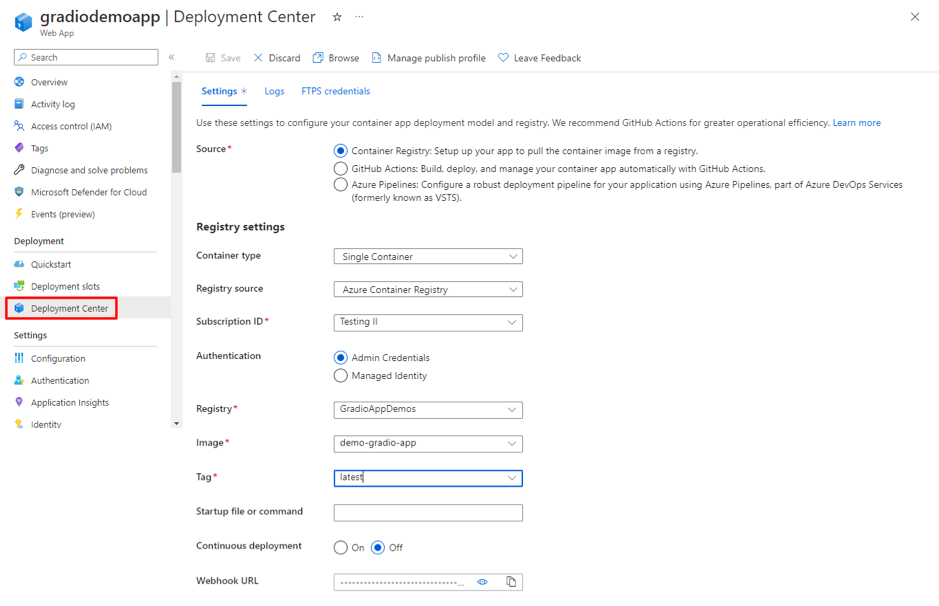 Configure the Web App
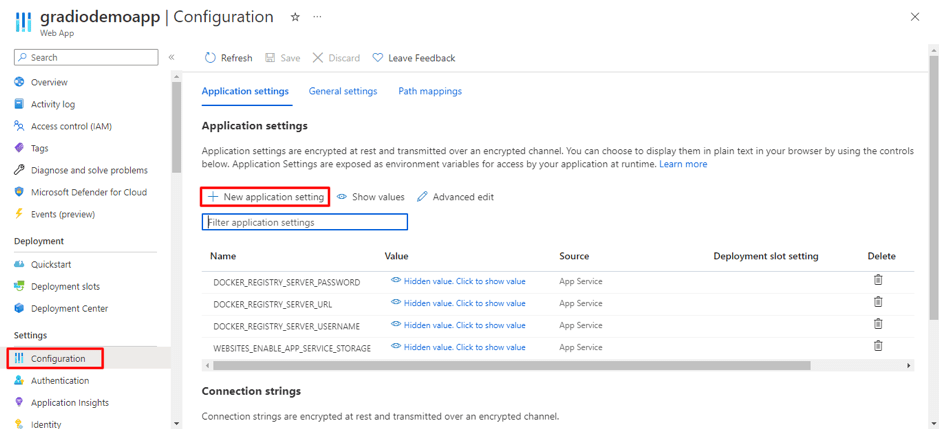
In the Configuration tab, create a new application setting for the website port 7000, as specified in the app.py file and the hit ‘Save’.
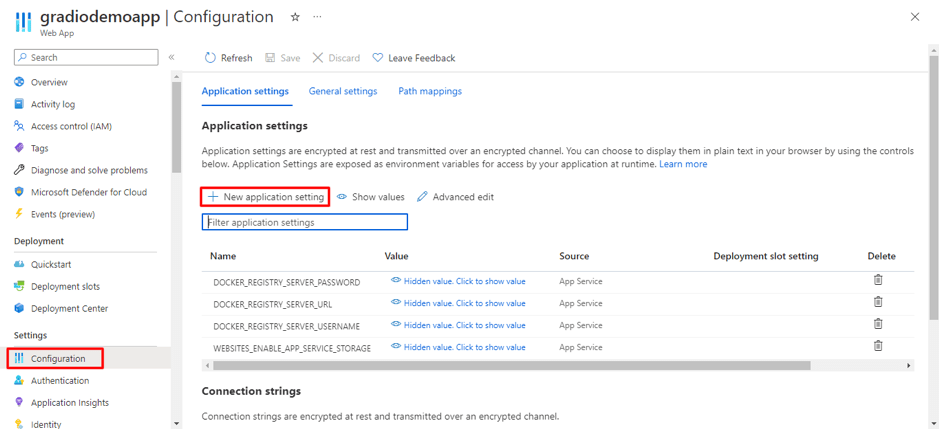 Web App for Gradio Step 9B
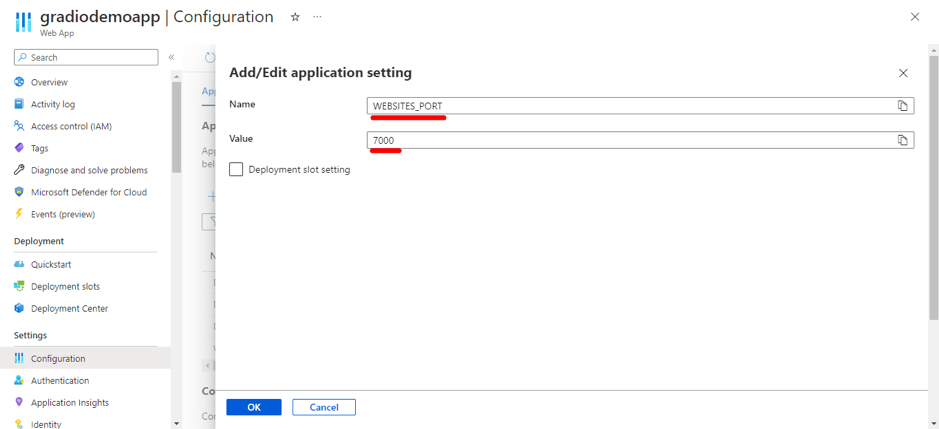 Web App for Gradio Step 9C
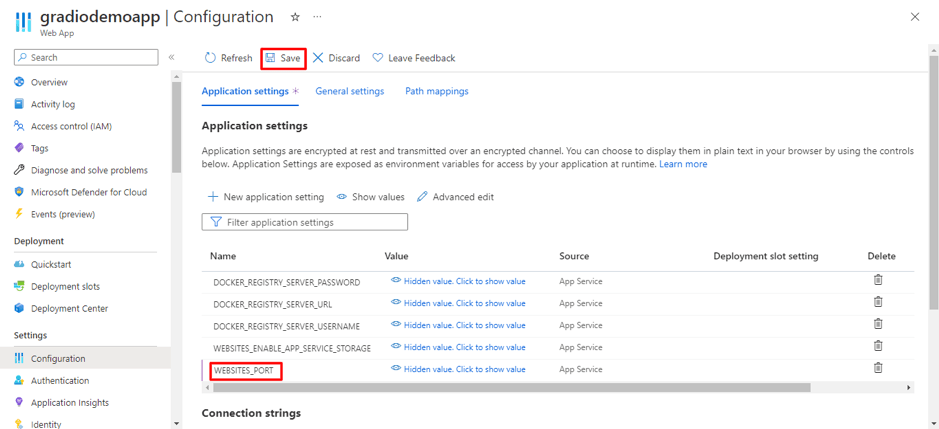 Web App for Gradio Step 9D
In the Configuration tab, create a new application setting for the website port 7000, as specified in the app.py file and the hit ‘Save’.
 Web App for Gradio Step 9E
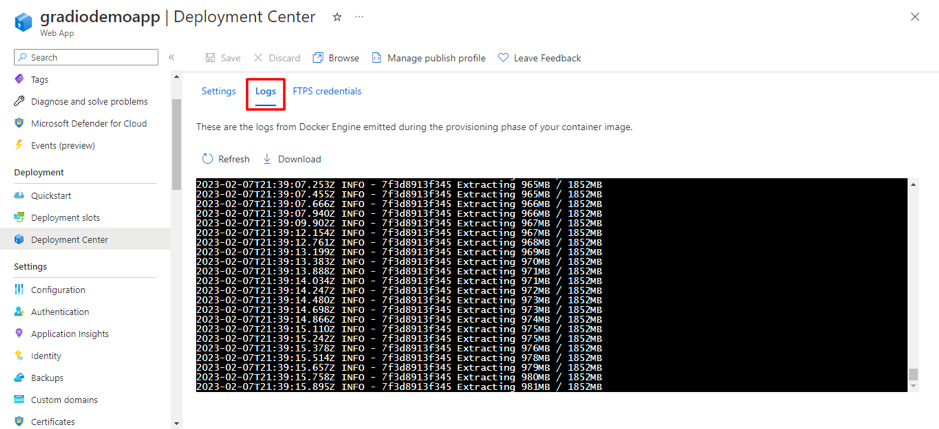
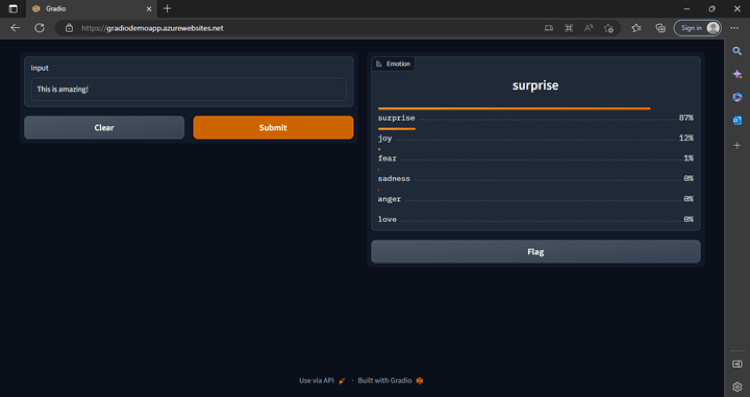
After the image extraction is complete, you can view the web app URL from the Overview page.
 Web App for Gradio Step 9F
 Web App for Gradio Step 9G
Step 1O: Pushing Image to Docker Hub (Optional)
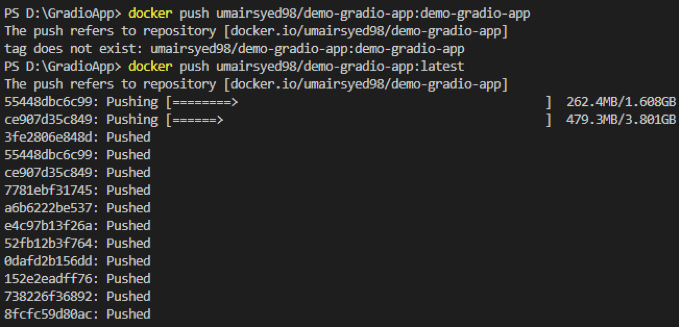
Here are the steps to push a local Docker image to Docker Hub:- Login to your Docker Hub account using the following command:
- Tag the local image using the following command, replacing [username] with your Docker Hub username and [image_name] with the desired image name:
- Push the image to Docker Hub using the following command:
- Verify that the image is now available in your Docker Hub repository by visiting https://hub.docker.com/ and checking your repositories.
 Web App for Gradio Step 10A
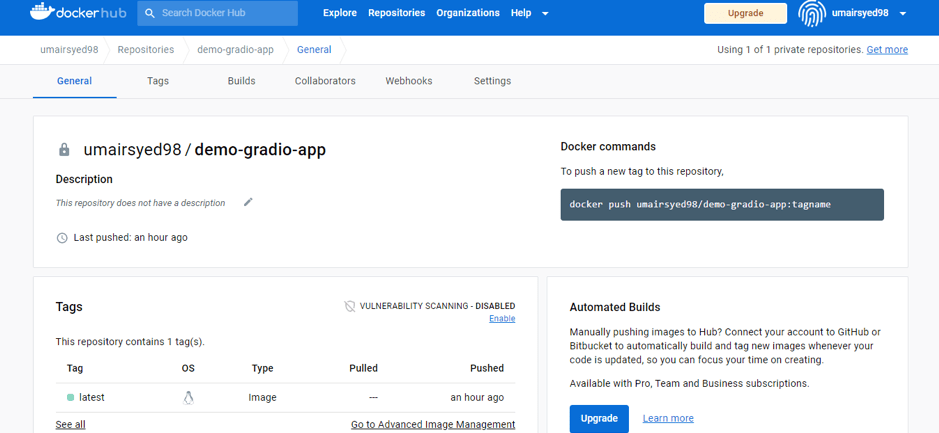 Web App for Gradio Step 10B
Wrapping it up
In conclusion, deploying a web application using Docker on Azure is an easy and efficient way to create and deploy applications. This method is suitable for those who lack the necessary coding skills to create a web app from scratch. Docker is an open-source platform for automating the deployment, scaling, and management of applications, as containers.
Azure Container Registry is a fully managed, private Docker registry service provided by Microsoft as part of its Azure cloud platform. Azure Web Apps is a fully managed platform for building, deploying, and scaling web applications and services. By following the step-by-step guide provided in this article, users can deploy a Gradio application on Azure using Docker.
Want to build AI agents that can reason, plan, and execute autonomously?
Learn more